




















































OpsHub Integration Manager

No-code integration platform for rich bi-directional sync

OpsHub Migration Manager

Zero downtime migration to tool of your choice

OpsHub Archive Manager

Keep Historical Data, Without Slowing Down Your Tools

OpsHub Migrator for Microsoft Azure DevOps

Migrate or restructure Azure DevOps

OpsHub Data Bridge

Real-time, context-rich data lake for AI or analytics

Discover our story, vision, and impact.

By Domain

Software Development & Agile Engineering

No-code integration across teams and systems

IT Service Management & Customer Support

Enable collaboration between IT, support, and business teams

Product Lifecycle Management & Systems Engineering

Connect PLM & engineering teams for smarter products

Requirements Management for Regulated Industries

Ensure regulatory compliance from start to release

Blogs

Explore the latest in technology best practices

Case Studies

Success stories from the field

White Papers

Actionable insights for your business challenges.

Videos

See solutions in action

EBooks

Learn, plan, and execute with confidence

Press Releases

Official announcements and updates

Webinars

Join discussions that drive results

News Letters

Stay ahead with curated insights

Compare-2

Evaluation Toolkit

Evaluate before you buy

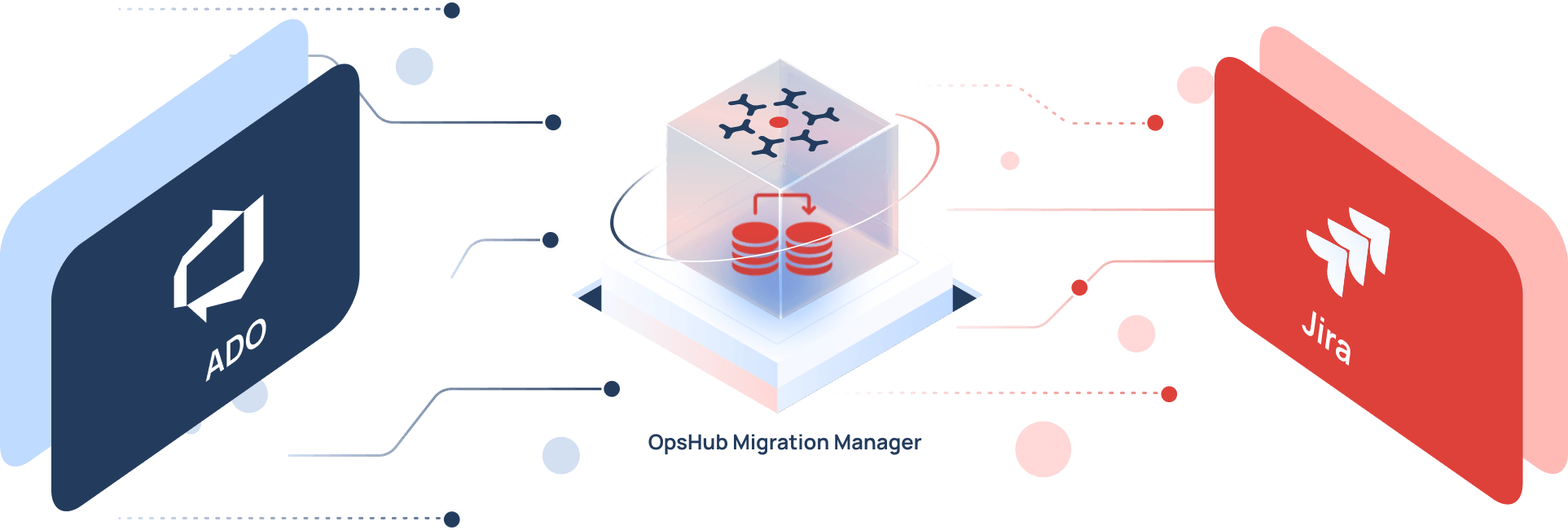
OpsHub Migration Manager (OMM)

Migrate from Azure DevOps to Jira

without losing your data

Move your Azure Boards work items, full revision history, comments, attachments, inline images, sprints, and relationships from Azure DevOps to Jira Cloud. Both systems stay alive until you decide to cut over, so no team has to stop working.

100+

Successful migrations

2M+

Work items migrated

0

Downtime

70+

Tool supported

Teams who have trusted OpsHub with their most important data

Why can't you just export Azure DevOps and import into Jira?
The systems don't speak the same language.

Azure DevOps and Jira organize work differently, so a plain export keeps the fields but loses the history, links, and context behind them.

Four levels collapse into three

Azure DevOps stacks four levels: Epic, Feature, Story, and Task. Jira has three, so the Feature level has to be remapped or it collapses into another type.

Work items are not Jira issues

Azure DevOps uses work items and process templates; Jira uses issues and issue types. Each type has to be mapped to the right Jira equivalent.

States need a Jira equivalent

States such as In Review, QA, or Blocked have no default Jira match, so each one has to be mapped or workflow history arrives wrong.

Area paths have nowhere to land

These Azure DevOps classification nodes do not exist in Jira. They have to be mapped to components, labels, sprints, or fix versions.

CSV exports leave history behind

Field values move, but comments, attachments, inline images, revision history, and links do not. Those take more than an export.

Identities get lost in the move

Azure DevOps uses Microsoft Entra ID and Jira uses Atlassian accounts. Without mapping, work lands on the wrong person or a ghost user.

Why OpsHub for Azure DevOps to Jira migration?

OpsHub Migration Manager is not a generic data mover. It understands the data models of both Jira and Azure DevOps and handles the translation between the two, without disrupting business continuity.
01

Teams keep working in Azure DevOps during the migration

Delta sync captures new issues, changes, and comments in the background, and reverse sync keeps both systems aligned until cutover. No freeze window.

02

Every work item moves with its full history and links

Comments with author and timestamp, attachments, inline images, revision history, links, sprints, and custom fields all migrate, not a flattened snapshot.

03

Your Azure DevOps hierarchy is rebuilt, not flattened

The Feature level is placed where you choose, so your four-level structure keeps its shape inside Jira's model.

04

Fields, states, and users are mapped without code

Map work item types, fields, states, area and iteration paths, and user identities through a visual, no-code interface, with no scripts or developer dependency.

05

Deploy on-premises to keep data in your network

Run OpsHub on-premises, in your cloud, or in OpsHub's secure cloud, inside your firewall for data residency requirements.

06

Every record is validated against the source

Reliable migration, delta sync, and per-record reconciliation across projects and data types confirm each item arrived, at any scale.

What your Azure DevOps data becomes in Jira

An artifact-level breakdown, so nothing surprises you after cutover.

In Azure DevOps In Jira How OpsHub handles it
Work item types: Epic, Feature, User Story or PBI, Task, Bug Issue types: Epic, Story, Task, Bug, Sub-task Feature level placed where you decide
Custom fields Custom fields Mapped field by field; no target means consolidate, not lose
Workflow states and transitions Statuses and workflow Custom states mapped without code
Area Paths Components or labels Classification node mapped to your scheme
Iteration Paths Sprints or fix versions Sprint and board history preserved
Parent-child and related links Issue links and hierarchy Includes predecessor-successor and blocking
Cross-project links Issue links Kept across project boundaries
Comments Comments Original author and timestamp retained
Change history and revisions Issue history Carried as history, not flattened into one entry
Attachments and inline images Attachments and embedded images Large files and inline screenshots included
@mentions and original IDs @mentions and stored original IDs References stay traceable
Test Plans, suites, and cases Jira test apps such as Xray or Zephyr Squad Mapped into the Jira test structure you use
Boards and saved queries Boards and filters Board configuration and queries rebuilt and mapped
Sprint and iteration dates Sprint dates Kept so velocity history survives

What a CSV export or a REST API script misses:
Comments and attachments do not come across, change history collapses into a single entry, links between items break, and any field without a mapping disappears with no error. That is most of what makes your Azure DevOps data worth keeping. A custom REST API script can carry more, but your team has to build and maintain the mapping, hierarchy, and identity logic, and keep it correct as both tools change.

Key Considerations for System Migration

Plan every step of your migration with precision. Download the checklist now

How to migrate Azure DevOps projects to Jira with OMM?

From first connection to cutover, each step is validated before the next begins.

Connect the systems

OpsHub links Azure DevOps and Jira through their APIs, running outside both so neither slows down.

Map every field

Set work item types, fields, states, paths, and users in a visual interface, with no scripting.

Run a pilot

Migrate one project first, then check it against the source before going wider.

Migrate and sync

Run the full migration while delta sync captures new changes, so teams keep working in Azure DevOps.

Validate and cut over

Confirm counts, links, and history per record, then switch teams to Jira on your schedule.

The same process fits all your rollouts. Either move team by team or project by project, run a single big-bang cutover, keep both systems running in parallel with reverse sync, consolidate several Azure DevOps organizations into one Jira instance, or migrate only selected projects or work item types. The steps stay the same; only the sequencing changes.

What they said

Success stories of those who tried, experienced, and scaled growth with OpsHub

OpsHub migrates across 70+ systems, not just Azure DevOps and Jira

The same platform moves data between Jira, Azure DevOps, Rally, OpenText ALM, IBM DOORS, ServiceNow, and more than 70 other systems.

Frequently Asked Questions

Answers to the questions teams ask most often before choosing a migration platform.

How does the Azure DevOps Feature level map into Jira?

When you migrate Azure DevOps to Jira, the hierarchy is the first mismatch to resolve. Azure DevOps uses four work item levels by default: Epic, Feature, User Story or Product Backlog Item, and Task. Jira uses three: Epic, Story or Task or Bug, and Sub-task. The Feature level has no native Jira equivalent. OpsHub Migration Manager lets you decide where it goes: raise it to a Jira Epic, place it on a higher Jira hierarchy level, or preserve it as a linked issue, so the structure is mapped on purpose rather than silently flattened.

Does comment and change history survive the move to Jira, with authors and timestamps?

Yes. OpsHub Migration Manager migrates comments with their original author and timestamp, and carries Azure DevOps work item revision history across as Jira issue history rather than collapsing it into a single entry. Attachments, inline images, and @mentions move with the item.

How long does an Azure DevOps to Jira migration take for 100,000 or more work items?

The timeline depends on the number of projects, the volume of work items, and how much field and workflow mapping is involved, not on item count alone. A pilot on a single project usually completes in about a day. Because teams keep working in Azure DevOps during the migration and delta sync captures changes, the volume does not force a work stoppage. Book a slot and we will scope a realistic timeline for your environment.

What happens if a migration needs to be rolled back partway through?

OpsHub Migration Manager runs a pilot first, so exposure is limited before any full migration. If a run needs to be undone, the partial data in Jira can be cleared without corrupting the target instance, and full validation happens before cutover. Your production data stays in Azure DevOps throughout, so it is never at risk during the process.

Can you migrate from on-premise Azure DevOps Server or TFS to Jira?

Yes. OpsHub Migration Manager connects to Azure DevOps Services in the cloud and to on-premise Azure DevOps Server, including earlier TFS versions, and moves their work items, history, and links into Jira. Because OpsHub can run on-premise, data from a self-hosted server can stay inside your network during the move.

Is the migration secure for data residency and compliance requirements?

Yes. OpsHub Migration Manager offers an on-premise deployment option, so data never leaves your network. Every operation is recorded in a full audit trail, and the migration log can be exported as compliance evidence for regulated sectors such as defense, aerospace, healthcare, and finance.

Does the Jira Cloud Migration Assistant (JCMA) work for an Azure DevOps to Jira move?

No. The Jira Cloud Migration Assistant only moves data between Jira instances, from Jira Server or Data Center to Jira Cloud. It cannot read Azure DevOps, so it does not apply to this direction. There is no native Microsoft or Atlassian tool that imports Azure DevOps work items into Jira, which is why a dedicated migration tool such as OpsHub Migration Manager is used.

Which Jira deployments can OpsHub migrate to?
OpsHub Migration Manager supports both Jira Cloud and Jira Data Center as migration targets. Most teams moving off Azure DevOps today choose Jira Cloud, and that is what we recommend. If your organization keeps Jira on its own infrastructure, OpsHub can migrate to Jira Data Center as well.

You can move to Jira and keep everything your teams built in Azure DevOps

OpsHub has done this across 70+ systems for over two decades, with no scripting and no forced downtime.

Trusted by 500+ teams across finance, defense, healthcare, and technology.